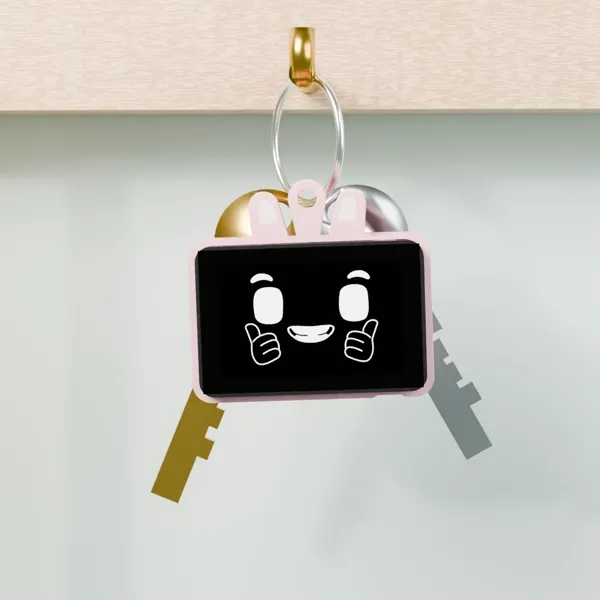
The short answer
Power Pebble through USB-C using a computer or a standard 5 V USB charger. The battery model can run away from the cable for a few hours; the wired model must stay plugged in. Keep both versions dry, clean with a soft dry cloth and protect the 3D-printed case from heat and impacts.
First-time USB-C setup
Connect USB-C to a computer or standard 5 V USB charger. Pebble wakes with a yawn. The battery version charges while connected; the version without battery stays plugged in during use.
Place Pebble on a dry, stable surface before powering it. If you want to use the optional desktop app, choose a USB-C data cable, not a charge-only cable. Start with a direct connection to your computer if it is not detected through a hub.
Battery versus wired: which version do you have?
The battery Pebble is designed for a few hours on keys or a bag away from its cable, then recharging through USB-C. We do not specify an exact runtime or charging duration because actual use can vary.
The version without a battery only runs while plugged into USB-C. It suits a desk or bedside surface; unplugging it stops operation. A wired Pebble switching off when disconnected is expected, not a charging fault.
Cleaning and protecting the case
Use a soft, dry cloth to clean the screen and case. Keep Pebble away from rain, drinks and washing. Do not immerse it or clean it with a wet cloth.
Avoid impacts and remove it before washing a bag. The 3D-printed case can soften in heat, so do not leave it in a hot car or strong sun. Keep cables positioned so they cannot pull the gadget off your desk.
Safe charging and battery care
Charge the lithium-battery model from a computer or a standard 5 V USB charger on a suitable hard surface. Never charge it on a bed or under a pillow.
Stop using it if it becomes hot, swells or smells strange. Contact PrintMyMoment for help; do not continue charging or open the case. Pebble is a gadget, not a toy: keep it away from children under eight, and supervise younger users. At end of life, recycle it as electronics rather than household rubbish.
Using a sofa or cloud stand
Slide Pebble into a compatible sofa, cloud stand or laptop clip from the top, screen facing you, with the cable on the right. Clips fit lids 4–9 mm thick; choose a compatible size. Keep the webcam visible between the front tabs. Remove Pebble before closing the laptop or putting it in a bag to avoid damage. Choose a sofa or cloud stand free with the A$119 battery Pebble, or add one for A$9.99 with the wired Pebble. Laptop clips are not included.
Set the stand on a stable surface away from drinks and desk edges. Fit and remove Pebble gently rather than forcing the case into position.
Switching off, waking up and a dark screen
Find BOOT and RST in the slots beside USB-C. Hold BOOT for 5 seconds to switch off and save battery. Press RST, or unplug and reconnect the cable, to switch on. If it restarts instead of switching off, you pressed RST — try the other button.
For a dark screen, plug in the cable and press RST. For ignored taps, let the current expression finish. If the desktop app is open, close it and wait 2 minutes. Touch or lift a sleepy Pebble; put a frequently confused Pebble on a steady surface. If your computer cannot find it, use a USB-C data cable directly, without a hub.
If you still need help, email printmymoment.store@gmail.com with your order reference, power version and what you have already tried. Do not send payment-card details.
Product notes & further help
These tips describe the Pebble sold by PrintMyMoment and its standalone behaviour, as documented in our owner’s guide. They do not describe every feature of the optional desktop app.
Unofficial fan-made case, not affiliated with or endorsed by TRIIIS LABS. The Taby character, face and animations are © TRIIIS LABS, used under the Taby Artwork Terms. Runs the open-source Taby firmware (Apache-2.0). The optional Taby app is made by TRIIIS LABS.
printmymoment.store@gmail.comRead next
How a Digital Keychain Reacts to Touch & Movement